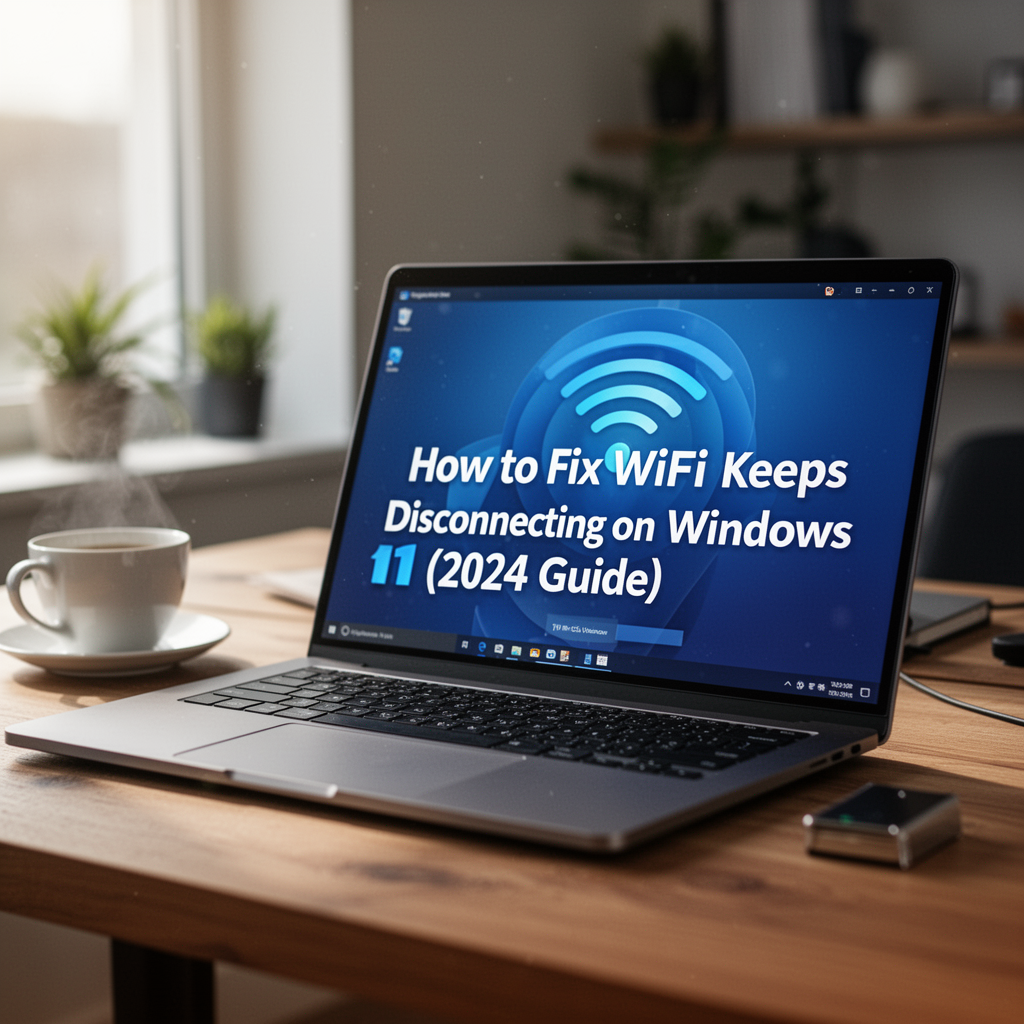
There is nothing more frustrating than being in the middle of a high-stakes Zoom meeting, streaming your favorite 4K content, or gaming online, only to have your internet connection abruptly vanish. If your Windows 11 device is plagued by intermittent connectivity, you aren't alone. This is a common pain point for many users, often caused by outdated drivers, aggressive power-saving settings, or interference.
In this comprehensive guide, we will walk you through the exact steps to diagnose and resolve these drops once and for all. Whether you are using a modern ultrabook or a heavy-duty gaming desktop, the solutions provided here will help you regain a stable, lightning-fast connection. We will cover everything from simple software tweaks to hardware upgrades that can drastically improve your network stability. Before we dive into the technical fixes, ensure your hardware is up to the task—sometimes the issue isn't the software, but a signal strength limitation that requires a boost.
Root Causes: Why Does Your WiFi Keep Dropping?
Before we start clicking through settings, it helps to understand why this happens. WiFi instability in Windows 11 is usually triggered by one of four major categories:
- Driver Conflicts: Windows 11 occasionally installs generic drivers that don't play nice with your specific WiFi card.
- Power Management: Windows often "puts your WiFi adapter to sleep" to save battery, causing the connection to drop.
- Signal Interference: Overcrowded channels (2.4GHz vs 5GHz) or physical obstructions can cause packet loss.
- Router Misconfiguration: Old firmware on your router can lead to handshake failures with modern Windows 11 security protocols.
Step-by-Step Diagnosis and Troubleshooting
1. Run the Network Troubleshooter
Windows 11 has a built-in diagnostic tool that can detect common configuration errors automatically.
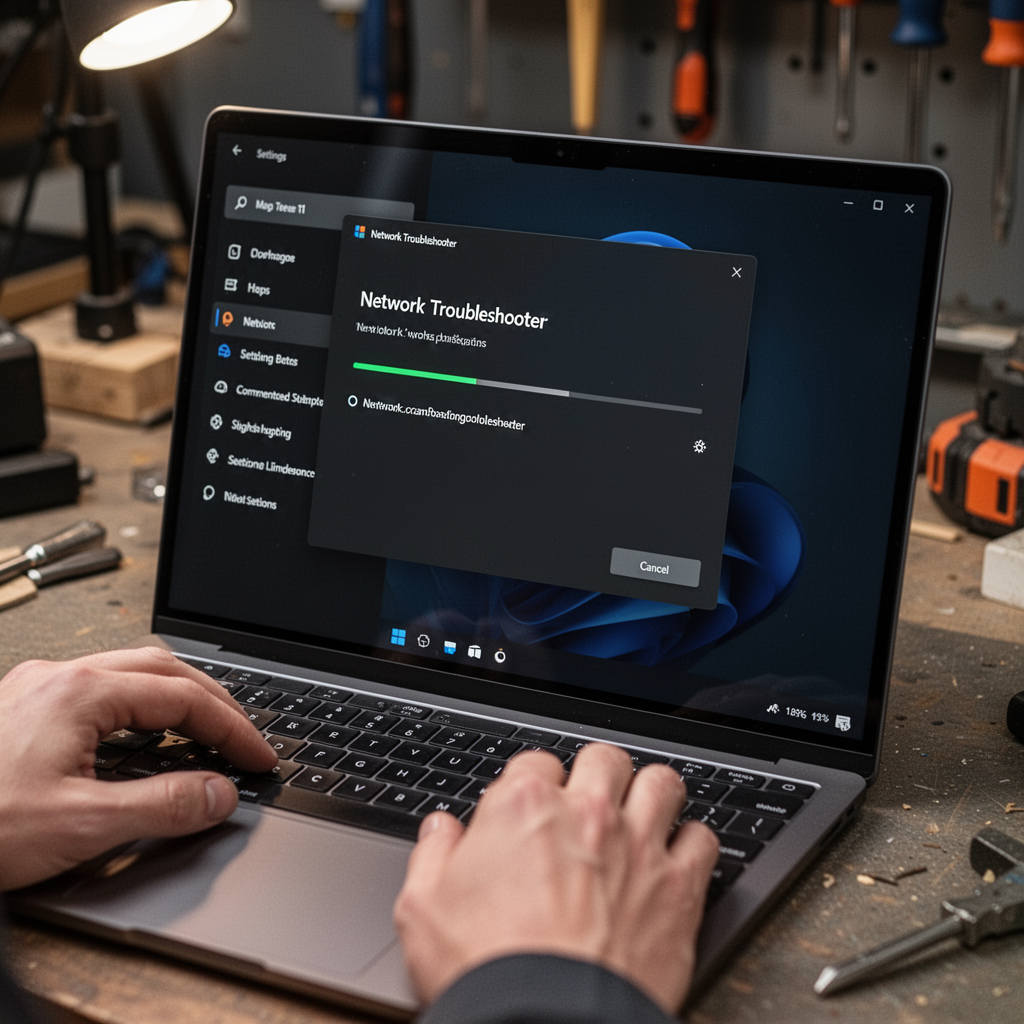
- Step: Navigate to Settings > System > Troubleshoot > Other troubleshooters.
- Action: Click the "Run" button next to "Network Adapter."
- Tool Needed: Built-in Windows Diagnostics.
2. Update Your Network Adapter Drivers
This is the single most common fix. If your driver is corrupted or outdated, your connection will flicker.
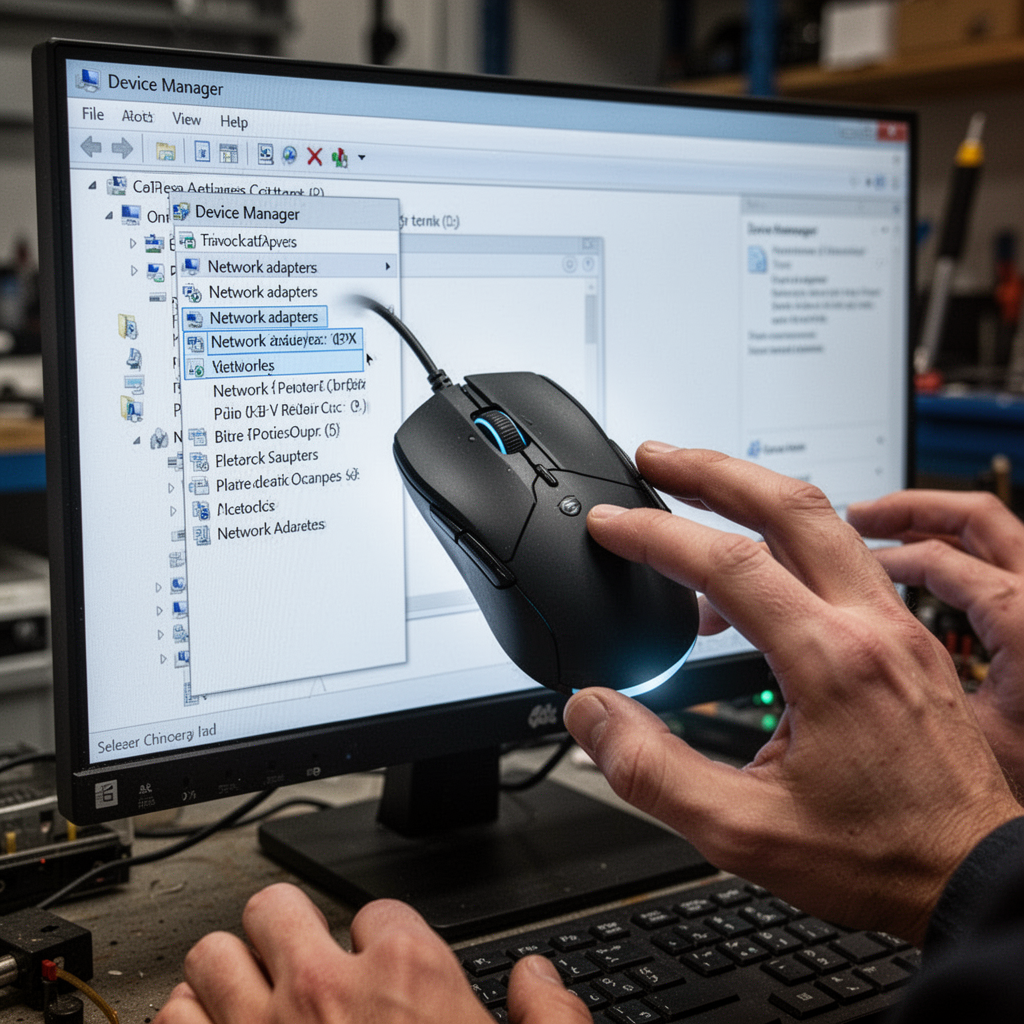
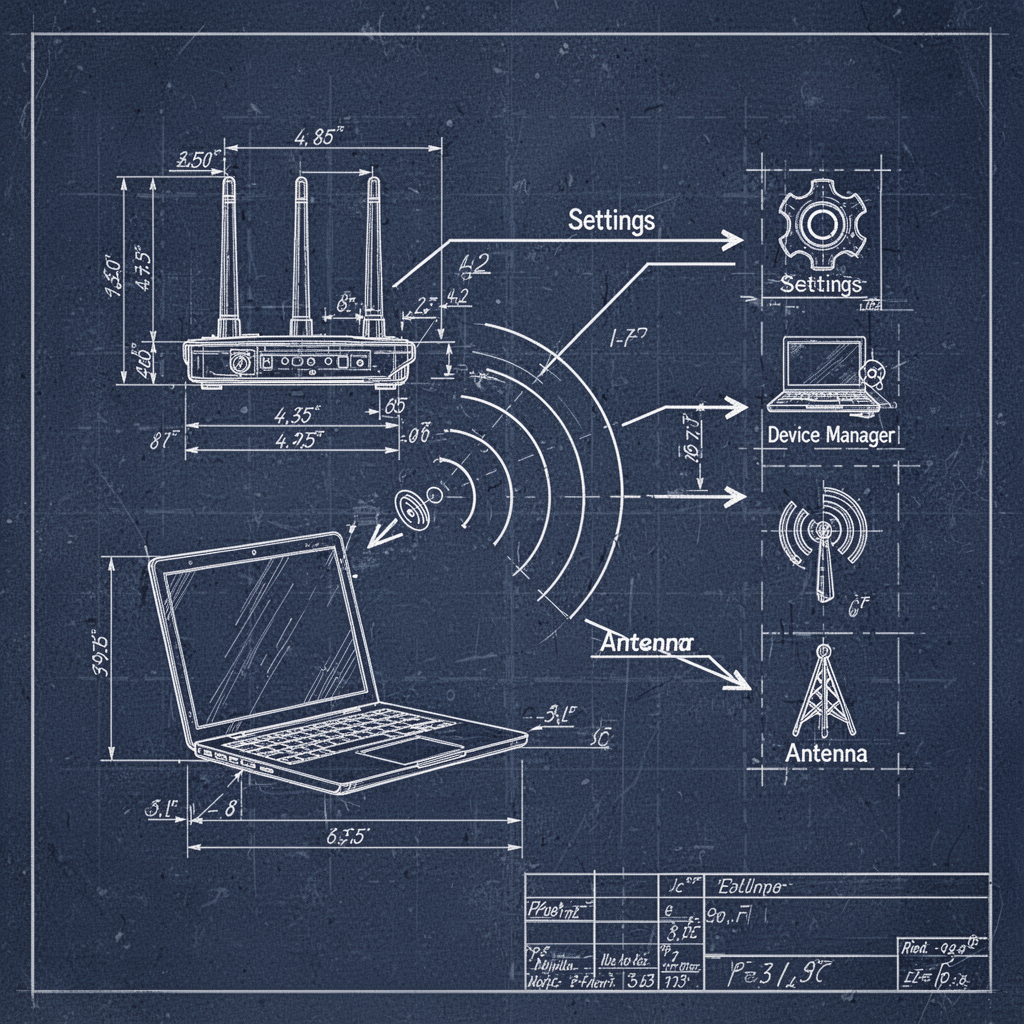
- Step: Right-click the Start button and select Device Manager.
- Action: Expand "Network adapters," right-click your WiFi card (e.g., Intel WiFi 6), and select Update driver. Choose "Search automatically for drivers."
- Tool Needed: Device Manager (pre-installed).
3. Disable Power Management Settings
Windows 11 might be turning off your radio to save juice. We need to prevent this.
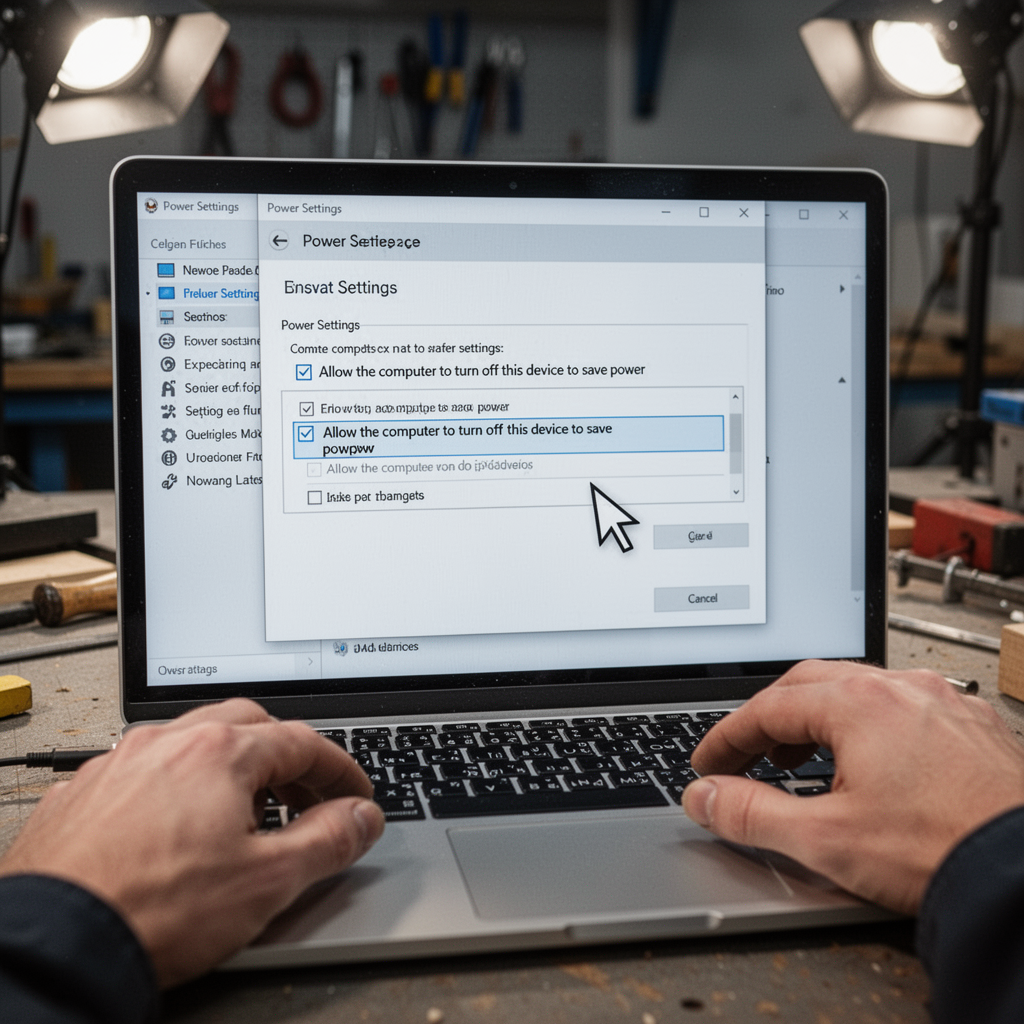
- Step: In Device Manager, right-click your WiFi adapter and select Properties.
- Action: Go to the Power Management tab. Uncheck "Allow the computer to turn off this device to save power."
- Tool Needed: Device Manager.
4. Reset the Network Stack
If you have lingering IP or DNS conflicts, a complete network reset is the "nuclear option" that usually works.
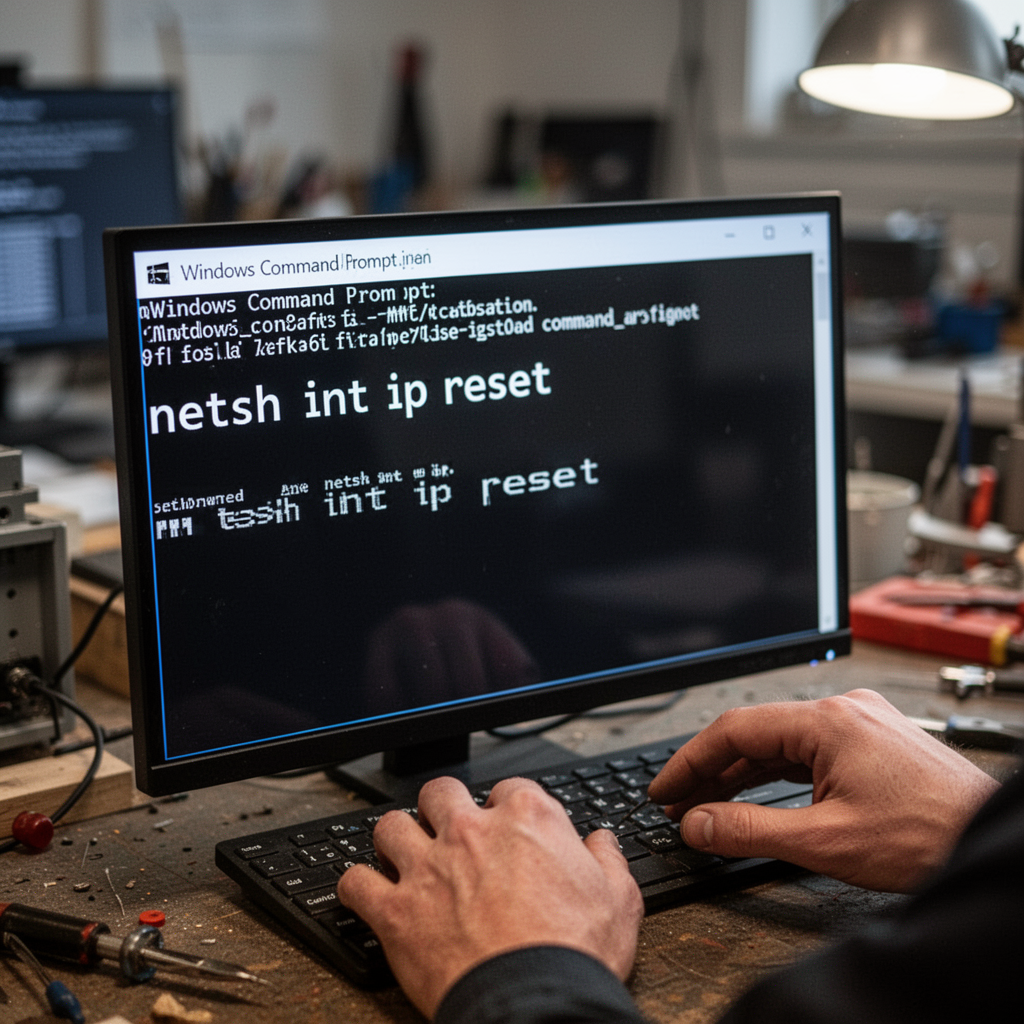
- Step: Open Command Prompt as Administrator.
- Action: Type
netsh winsock reset, hit Enter. Then typenetsh int ip reset, hit Enter. Restart your computer. - Tool Needed: Command Prompt.
When to Call a Professional
If you have tried the steps above and your internet continues to drop—and you have confirmed that other devices (phones, tablets) stay connected to the same router—the issue is likely a failing WiFi card. At this stage, instead of paying for expensive laptop repairs, it is often more cost-effective to use a high-quality USB WiFi adapter.
Beginner Tips & Common Mistakes
- The "Turn it Off and On Again" Rule: Always restart your router before changing Windows settings. 60% of connection issues are ISP or router-related.
- Don't Ignore Updates: Always keep Windows 11 updated. Microsoft frequently patches networking bugs in their monthly cumulative updates.
- Avoid "Cleaner" Software: Many third-party "PC Optimizer" apps actually corrupt network drivers. Avoid them at all costs.
- Location Matters: Ensure your laptop isn't placed inside a metal desk or too close to a microwave, which causes significant 2.4GHz interference.
Frequently Asked Questions (FAQ)
- Why does my WiFi drop only when gaming? Games require high upload and low latency. If your router is overheating or your signal is weak, heavy traffic causes the connection to choke.
- Is it my router or my PC? If all devices in your home drop, it’s the router/ISP. If it's only your Windows 11 PC, it is a driver or setting issue.
- Should I use 2.4GHz or 5GHz? Use 5GHz for speed and stability, but only if you are in the same room as the router. Use 2.4GHz for better range through walls.
- Will reinstalling Windows 11 fix this? Only if the issue is deep-seated corruption. Try the driver reset first.
- Does VPN usage cause WiFi drops? Yes, VPN software creates a virtual network adapter that can conflict with your physical WiFi adapter. Try disabling your VPN.
- What is a "Winsock" reset? It resets the Windows Socket API, which manages how software communicates with your network connection.
- Can I replace a laptop WiFi card? Yes, but it is technically difficult. Using a USB adapter is much safer for beginners.
- Are high-gain antennas worth it? Absolutely, if your router is in another room, a high-gain antenna will significantly improve connection "handshakes."
Safety Tips
When working with internal components (if you decide to swap a WiFi card), always unplug the power cable and discharge static electricity by touching a grounded metal object. Never force a USB adapter into a port; if it doesn't fit, verify the orientation. Avoid using liquid cleaners on exposed circuit boards.
Conclusion
Resolving connection issues on Windows 11 can be a tedious process, but by methodically following these steps—updating drivers, adjusting power settings, and resetting your network stack—you can restore your system's reliability. Technology is not perfect, and interference from neighbors, outdated router firmware, or simple software glitches can interrupt your digital life.

KardiaMobile 1-Lead EKG Monitor, Medical-Grade FDA-Cleared Personal Heart Monitor, Detects Normal, AFib & Arrhythmias, 30 Second Results, Works with Smartphones, Pocket Size, No Subscription Required
However, if your internal hardware remains stubborn, remember that affordable external adapters like the TP-Link AXE5400 or Netgear Nighthawk provide a robust workaround that often outperforms built-in cards. Don't let a "limited connection" warning derail your productivity. Bookmark this guide, apply these fixes, and get back to browsing with confidence. If you found this tutorial helpful, consider sharing it with a friend who might be struggling with the same frustration!